
It sounds like you’ve encountered a common issue that many users face: syncing your Zotero library with ZotAI successfully, but noticing that the PDF content is missing. Don’t worry—you’re not alone in this!
First step is to check if it is really available or not
To make sure everything’s working, please check that your PDF can be opened in Zotero. Just head over to Zotero, give that PDF a try, and see if it opens up or not!
If you’re confident that your PDF should be available, it’s possible that it just hasn’t been indexed by Zotero yet.
Indexing is a handy feature that allows Zotero to automatically extract the text content from any new PDF or article you add, making it super easy to search later on! ZotAI relies on this process to help you access and utilize your PDF content.
Why this happens
The issue is sometimes Zotero will not index all PDF files that you store on it for different reasons. Mainly due to size and amount of text restrictions. The solution to this is as follows:
Quick solution for individual items
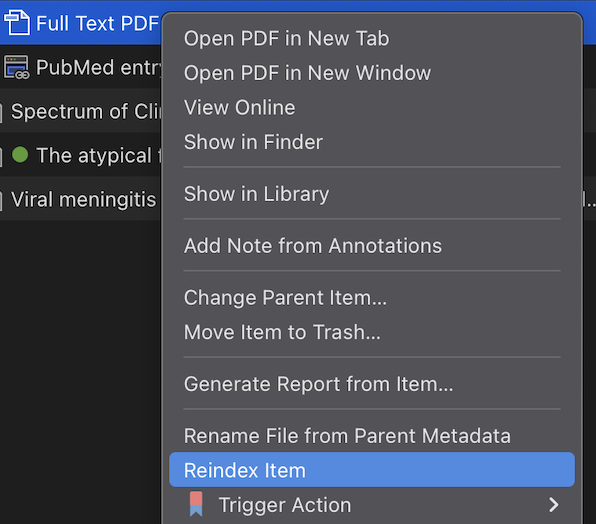
If you have one or two files missing then go to Zotero, right click on the PDF file you are missing its content, select Reindex item.
Then right click on the Sync button on the top right corner of Zotero and wait for a few seconds.
Now back to ZOTAI, click on Sync button on top toolbar and allow it couple seconds to grab the updates.
Now you should see the content of the PDF file in ZOTAI.
Recommended Solution: for the whole library if many PDFs are missing; or if you are receiving incomplete answers from ZOTAI
Open Zotero > Go to its settings > Advanced menu > scroll to the very bottom of that screen
(You might notice the statistics at the bottom of the number of unindexed items)
Under maximum characters to index per file enter ‘999999999‘
Under maximum pages to index per file enter ‘9999999999‘
(Be aware this means any file now you add to Zotero will be fully indexed regardless of its size)
Now click ‘Rebuild Index‘. This will take some time depending on your library size. Don’t worry none of your PDFs will be deleted, however Zotero will be just re-extracting their text content.

At the end, Make sure to hit the Sync button on Zotero, wait it to complete, then Sync button at ZOTAI.
If you are still experiencing issues after this, I’d advise you to got to ZOTAI settings > Go to Database tab > Click Clear and reindex local cache
This will delete all cached content on ZOTAI (without affecting your Zotero library items), then restart ZOTAI and it will start a new installation process and content caching as if newly installed.
If still experiencing issues after all of this, do not hesitate to contact us on [email protected]